Converting Static Module
- You need to have Composer installed on your machine. You can find the installation guide here.
- This tutorial assumes you have completed the Creating Divi 4 Module tutorial and read about Conceptual Changes between Divi 4 and Divi 5 modules.
In this tutorial, you will convert the Divi 4 module that you have created into Divi 5 module.
File Structure
From code organizational standpoint, we recommend not to mix Divi 4 and Divi 5 codebase. We recommend to approach Divi 5 conversion as if at some point Divi 4 module codebase will no longer being used and will be deprecated (although realistically it'll stay as long as shortcode layout are used). From this standpoint, it is better to separate them.
That being said, Divi 5 module will be on its directory, having its own webpack configuration, and won't change any Divi 4 code:
d5-tutorial-module-conversion
  /divi-4 // Existing Divi 4 codebase is here
  /divi-5 // Divi 5 codebase is here
Now this brought us to the next question: what are the components needed to compose a Divi 5 module?
At its simplest form, it looks like this:

Frontend has module renderer component while Visual Builder has both module renderer and module settings components:
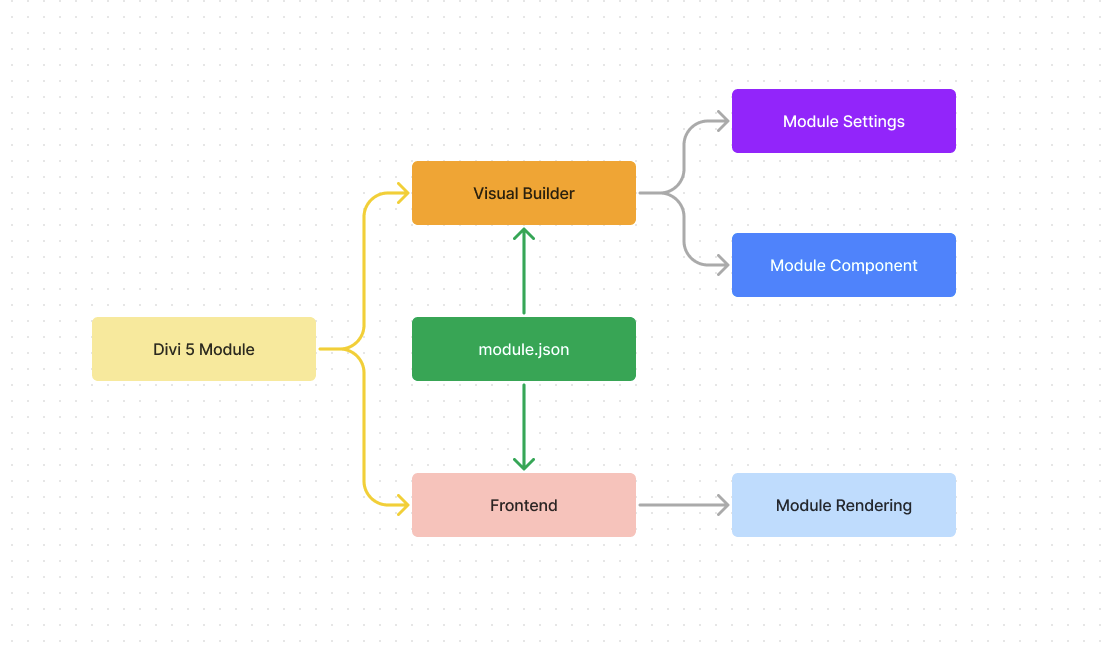
With complete file structure, it looks like this:

In form of file structure, it will look like this:
- File Structure
- File List
/divi-5
  divi-5.php
  composer.json
  composer.lock
  /server
    /Modules
      Modules.php
      /StaticModule
        StaticModule.php
        /StaticModuleTraits
          CustomCssTrait.php
          ModuleClassnamesTrait.php
          ModuleScriptDataTrait.php
          ModuleStylesTrait.php
          RenderCallbackTrait.php
  /visual-builder
    webpack.config.js
    package.json
    package-lock.json
    /build
      d5-tutorial-module-conversion.js
    /src
      index.js
      /modules
        index.js
        /static-module
          conversion-outline.js
          conversion-outline.json
          custom-css.js
          edit.jsx
          index.js
          module-classnames.js
          module-script-data.jsx
          module-styles.jsx
          module.json
          settings-advanced.jsx
          settings-content.jsx
          settings-design.jsx
/divi-5/divi-5.php
/divi-5/composer.json
/divi-5/composer.lock
/divi-5/server/Modules/Modules.php
/divi-5/server/Modules/StaticModule/StaticModule.php
/divi-5/server/Modules/StaticModule/StaticModuleTraits/CustomCssTrait.php
/divi-5/server/Modules/StaticModule/StaticModuleTraits/ModuleClassnamesTrait.php
/divi-5/server/Modules/StaticModule/StaticModuleTraits/ModuleScriptDataTrait.php
/divi-5/server/Modules/StaticModule/StaticModuleTraits/ModuleStylesTrait.php
/divi-5/server/Modules/StaticModule/StaticModuleTraits/RenderCallbackTrait.php
/divi-5/visual-builder/webpack.config.js
/divi-5/visual-builder/package.json
/divi-5/visual-builder/package-lock.json
/divi-5/visual-builder/build/d5-tutorial-module-conversion.js
/divi-5/visual-builder/src/index.js
/divi-5/visual-builder/src/modules/index.js
/divi-5/visual-builder/src/modules/static-module/conversion-outline.js
/divi-5/visual-builder/src/modules/static-module/custom-css.js
/divi-5/visual-builder/src/modules/static-module/edit.jsx
/divi-5/visual-builder/src/modules/static-module/index.js
/divi-5/visual-builder/src/modules/static-module/module-classnames.js
/divi-5/visual-builder/src/modules/static-module/module-script-data.jsx
/divi-5/visual-builder/src/modules/static-module/module-styles.jsx
/divi-5/visual-builder/src/modules/static-module/module.json
/divi-5/visual-builder/src/modules/static-module/settings-advanced.jsx
/divi-5/visual-builder/src/modules/static-module/settings-content.jsx
/divi-5/visual-builder/src/modules/static-module/settings-design.jsx
File Creation
First, let's create empty file in accordance to the file list above (click the File List tab to see them as file list). To simplify the process, you can open your terminal, go to d5-tutorial-module-conversion directory, and run this command:
mkdir -p \
divi-5/server/Modules/StaticModule/StaticModuleTraits \
divi-5/visual-builder/build divi-5/visual-builder/src/modules/static-module && \
touch \
divi-5/divi-5.php \
divi-5/composer.json \
divi-5/server/Modules/Modules.php \
divi-5/server/Modules/StaticModule/StaticModule.php \
divi-5/server/Modules/StaticModule/StaticModuleTraits/CustomCssTrait.php \
divi-5/server/Modules/StaticModule/StaticModuleTraits/ModuleClassnamesTrait.php \
divi-5/server/Modules/StaticModule/StaticModuleTraits/ModuleScriptDataTrait.php \
divi-5/server/Modules/StaticModule/StaticModuleTraits/ModuleStylesTrait.php \
divi-5/server/Modules/StaticModule/StaticModuleTraits/RenderCallbackTrait.php \
divi-5/visual-builder/webpack.config.js \
divi-5/visual-builder/package.json \
divi-5/visual-builder/package-lock.json \
divi-5/visual-builder/build/d5-tutorial-module-conversion.js \
divi-5/visual-builder/src/index.js \
divi-5/visual-builder/src/modules/index.js \
divi-5/visual-builder/src/modules/static-module/conversion-outline.js \
divi-5/visual-builder/src/modules/static-module/custom-css.js \
divi-5/visual-builder/src/modules/static-module/edit.jsx \
divi-5/visual-builder/src/modules/static-module/index.js \
divi-5/visual-builder/src/modules/static-module/module-classnames.js \
divi-5/visual-builder/src/modules/static-module/module-script-data.jsx \
divi-5/visual-builder/src/modules/static-module/module-styles.jsx \
divi-5/visual-builder/src/modules/static-module/module.json \
divi-5/visual-builder/src/modules/static-module/settings-advanced.jsx \
divi-5/visual-builder/src/modules/static-module/settings-content.jsx \
divi-5/visual-builder/src/modules/static-module/settings-design.jsx
This command will automatically create all the file listed above.
module.json
Now that we have discussed the conceptual change, we can start dive into the conversion process. The first step is converting module metadata. In Divi 4 this metadata came in form of prototypes that are declared in PHP class that extends ET_Builder_Module. In Divi 5, this metadata is declared in module.json file. The metadata is declared in module.json file so that these data can be imported to server / Frontend (PHP) and Visual Builder (JS).
Based on the metadata that we have in Module Registration earlier, the equivalent metada data looks like this:
{
  "name": "dtmc/static-module",
  "d4Shortcode": "dtmc_static_module",
  "title": "DTMC Static Module",
  "titles": "DTMC Static Modules",
  "category": "module",
  "attributes": {
    "module": {
      "type": "object",
      "selector": "{{selector}}",
      "default": {
        "advanced": {
          "text": {
            "desktop": {
              "value": {
                "color": "light"
              }
            }
          }
        }
      },
      "styleProps": {
        "sizing": {
          "propertySelectors": {
            "desktop": {
              "value": {
                "margin-left": "{{selector}}.et_pb_module",
                "margin-right": "{{selector}}.et_pb_module"
              }
            }
          },
          "important": {
            "desktop": {
              "value": {
                "margin-left": true,
                "margin-right": true
              }
            }
          }
        }
      }
    },
    "title": {
      "type": "object",
      "selector": "{{selector}} h2.dtmc_static_module_title, {{selector}} h1.dtmc_static_module_title, {{selector}} h3.dtmc_static_module_title, {{selector}} h4.dtmc_static_module_title, {{selector}} h5.dtmc_static_module_title, {{selector}} h6.dtmc_static_module_title",
      "attributes": {
        "class": "dtmc_static_module_title"
      },
      "tagName": "h2",
      "elementType": "heading",
      "childrenSanitizer": "et_core_esc_previously",
      "default": {
        "font": {
          "font": {
            "desktop": {
              "value": {
                "headingLevel": "h2"
              }
            }
          }
        }
      },
      "styleProps": {
        "font": {
          "headingLevel": "h2",
          "important": true
        }
      }
    },
    "content": {
      "type": "object",
      "selector": "{{selector}} .dtmc_static_module_content",
      "attributes": {
        "class": "dtmc_static_module_content"
      },
      "tagName": "div",
      "childrenSanitizer": "et_core_esc_previously",
      "allowHtml": true,
      "styleProps": {
        "bodyFont": {
          "important": {
            "body": {
              "font": {
                "desktop": {
                  "value": {
                    "color": true
                  }
                }
              }
            }
          }
        }
      }
    }
  },
  "customCssFields": {
    "title": {
      "subName": "title",
      "selectorSuffix": " .dtmc_static_module_title"
    },
    "content": {
      "subName": "content",
      "selectorSuffix": " .dtmc_static_module_content"
    }
  }
}
Explanation for each property:
| Property name | Description |
|---|---|
name | The name of the module. This is used to identify the module in the Visual Builder. It is also used to identify the module in the server side (PHP) code. |
d4Shortcode | The shortcode name of the module in Divi 4. Divi4 module's slug |
title | The title of the module. This is used to display the module name in the Visual Builder. |
titles | The plural form of the title. This is used to display the module name in the Visual Builder. |
category | This will always be set to module. Divi 5 module uses WordPress' block registration thus this informs the block registry that the current block is a module. |
attributes | It will contain all the information about the attributes that a module has. This is the most important part of the metadata, as it contains information about the module's attributes, their default values, and their elemental properties. Please see below for more information. |
customCssFields | Custom CSS field that a module have. |
Attributes
An attribute can have multiple properties. Those properties are:
| Property name | Description |
|---|---|
type | The type of the attribute. This is used to determine the type of the attribute in the Visual Builder. Most of the time, this will be set to object. |
selector | The CSS selector of the attribute. This is used to determine the element that the attribute will be applied to. It will be used by style, rendering the element, multiview and other features. If you need to declare separate selector for the style, you can declare it in styleProps property. |
attributes | The HTML attributes that will be applied to the element. This is used to add additional HTML attributes to the element. For example, if you want to add class attribute to the element, you can declare it here. |
tagName | The HTML tag name of the element. This is used to determine the element that the attribute will be applied to. It will be used by style, multiview and other features. |
elementType | The element type of the element. This is used to determine the element that the attribute will be applied to. Possible values are heading, headingLink and button. |
childrenSanitizer | This one will sanitize value of the attribute in element rendering. You need to add function name here. |
allowHtml | This one will allow HTML value of the attribute in element rendering. You need to set it to true if you want to allow HTML value. |
inlineEditor | This one will enable inline editor for the element. The possible values are plainText and richText. |
default | The default value of the attribute. This is used to determine the default value of the attribute in the Visual Builder and FrontEnd. |
defaultPrintedStyle | The default printed style of the attribute. This is used to determine the default printed style of the attribute for the module's settings modal. |
styleProps | The style properties of the element. It will be used by element styles. |
In a nutshell if a value regarding a module (metadata) is needed in both frontend and visual builder, the said value will be declared in module.json file.
If you have question where does attributes value come from, this is exactly the kind of problem that is mentioned at "Module Attribute Format Change" section.
The following are some possible question that might arise based on what you see on the module.json file above.
default and defaultPrintedStyle?Default value mechanism has nuance. The common conception about default is that it is a fallback value if no value provided. In reality, in terms of module, there are (at least) two kind of defaults:
| Default Name | Description | Module Settings | Layout |
|---|---|---|---|
default | Fallback value that issued if no value is provided | Used | Used |
defaultPrintedStyle | Inferred from your static style. | Used | No |
Both defaults are used in module settings. However defaultPrintedStyle not being used in rendered layout (either HTML element, style, or script data).
Here's an example of defaultPrintedStyle:
- Let's say you have module.
- The module has static style and the static style has
background-colorof#960000(your module enqueue a.cssfile that containsbackground-color: #960000) - This is why the background falls into
defaultPrintedStyle: Module setting need to display default#960000when no value is given. However module's style component doesn't need to render#960000when no value is given because the background is already visually have#960000background color courtesy of the static style In contrary, here's an example ofdefault: - Let's say you have module.
- The module's title heading can be modified (similar to Call To Action's title).
- The default value is
h2. This is why headingLevel should bedefault: The default value is needed by module settings to display default value when no value is given and the value is also needed by layout when no value is given to properly render<h2>for your module's title
Visual Builder
Build Configuration
Before we dive in into writing Visual Builder, let's set webpack configuration for the bundling process first. At this point, the code is mostly identical with its Divi 4 counterpart with slight difference in externals property. Nevertheless, it is important to keep them separate because more enhancement will be added later.
This webpack config only transpiles .js and .jsx files. If your module imports CSS or SCSS (for example import './module.scss'), follow Handling Static CSS and JS. That tutorial is not a drop-in loader patch for this d5-tutorial-module-conversion config: it uses the separate d5-tutorial-static-assets companion plugin, a different output layout, and matching enqueue steps.
const path = require('path');
const ConversionOutlineJsonPlugin = require('./webpack/config/plugins/conversion-outline-json-plugin');

module.exports = {
  // Webpack starts bundling the assets from the following file.
  // @see https://webpack.js.org/concepts/#entry
  entry: {
    bundle: './src/index.js',
  },

  // Divi Visual Builder use of scripts that is already enqueued by WordPress and available
  // in global scope so those scripts don't need to be included on the bundle. For webpack
  // to recognize those files, the global variable needs to be registered as externals.
  // These allows global variable listed below to be imported into the module.
  // @see https://webpack.js.org/configuration/externals/#externals
  externals: {
    // Third party dependencies.
    underscore: '_',
    react: ['vendor', 'React'],
    'react-dom': ['vendor', 'ReactDOM'],
    jquery: 'jQuery',

    // WordPress dependencies.
    '@wordpress/hooks': ['vendor', 'wp', 'hooks'],
    '@wordpress/i18n': ['vendor', 'wp', 'i18n'],
  },

  // This option determine how different types of module within the project will be treated.
  // @see https://webpack.js.org/configuration/module/
  module: {

    // This option sets up loaders for webpack configuration.
    // Loaders allow webpack to process various types because by default webpack only
    // understand JavaScript and JSON files.
    // @see https://webpack.js.org/concepts/#loaders
    rules: [
      // Handle `.jsx` files.
      {
        test: /\.jsx?$/,
        exclude: /node_modules/,
        use: [

          // Spawns multiple processes and split work between them. This makes faster build.
          // @see https://webpack.js.org/loaders/thread-loader/
          {
            loader: 'thread-loader',
            options: {
              workers: - 1,
            },
          },

          // Transpile JavaScript files using Babel. Translates newer syntax with less support
          // into older syntax with more support so the project can use newer syntax and have
          // them automatically translated into older syntax for compatibility support.
          // @see https://www.npmjs.com/package/babel-loader
          // @see https://babeljs.io/
          {
            loader: 'babel-loader',
            options: {
              compact: false,
              presets: [

                // Preset that adds configuration for handling latest JavaScript syntax.
                // @see https://babeljs.io/docs/en/babel-preset-env
                ['@babel/preset-env', {
                  modules: false,
                  targets: '> 5%',
                }],

                // Preset that added configuration for handling react & JSX.
                // @see https://babeljs.io/docs/en/babel-preset-react
                '@babel/preset-react',
              ],
              cacheDirectory: false,
            },
          }
        ]
      },
    ]
  },

  // Determine how modules are resolved.
  // @see https://webpack.js.org/configuration/resolve/
  resolve: {
    // Allows extension to be leave off when importing.
    // @see https://webpack.js.org/configuration/resolve/#resolveextensions
    extensions: ['.js', '.jsx', '.json'],
  },

  // Determine where the created bundles will be outputted.
  // @see https://webpack.js.org/concepts/#output
  output: {
    filename: 'd5-tutorial-module-conversion.js',
    path: path.resolve(__dirname, 'build'),
  },

  // Add plugins for automated file generation
  plugins: [
    // Automatically generates conversion-outline.json from conversion-outline.ts files
    new ConversionOutlineJsonPlugin(),
  ],

  stats: {
    errorDetails: true,
  },
};
Automated JSON Generation
The ConversionOutlineJsonPlugin is a critical part of the build process that automatically generates JSON versions of your TypeScript conversion outline files. This plugin:
- Searches for
conversion-outline.{ts,js}files insrc/modules/**/directory - Parses both TypeScript (.ts) and JavaScript (.js) files using AST (Abstract Syntax Tree) analysis
- Extracts static properties from the
conversionOutlinevariable - Generates
conversion-outline.jsonfiles in the same directory as the source files - Adds a warning comment: "!!! THIS IS AN AUTOMATICALLY GENERATED FILE - DO NOT EDIT !!!"
- Handles function references and converts them to strings for JSON compatibility
This automation ensures that:
- Your conversion mappings are available in JSON format for runtime consumption
- The JSON files stay synchronized with your TypeScript/JavaScript source
- Third-party plugin modules follow the same patterns as Divi 5 core modules
- Manual maintenance of duplicate JSON files is eliminated
The generated JSON files are consumed by Divi's conversion system when migrating modules from Divi 4 to Divi 5 layouts.
Required Plugin Files
The webpack plugin requires two files that should be downloaded from the official Divi extension examples repository and placed in your plugin's webpack configuration directory:
Conversion Outline JSON Plugin File:
conversion-outline-json-plugin.js- Location:
divi-5/visual-builder/webpack/config/plugins/conversion-outline-json-plugin.js
- Location:
Extract Static Properties Plugin File:
extract-static-properties.js- Location:
divi-5/visual-builder/webpack/config/plugins/extract-static-properties.js
- Location:
Required Change
The official GitHub plugin uses src/components/ for Divi core modules, but third-party plugins use src/modules/. You must update the search patterns in the plugin to work with your plugin structure.
After downloading conversion-outline-json-plugin.js, update the search pattern on lines 28-29:
// Change from (GitHub version):
const searchPattern = "src/components/**/conversion-outline.ts";

// To (Plugin version):
const searchPattern = "src/modules/**/conversion-outline.js";
This change ensures the plugin searches in your src/modules/ directory and looks for JavaScript files (since we're using .js files in this tutorial).
Setup Instructions
Create the plugins directory structure:
mkdir -p divi-5/visual-builder/webpack/config/plugins/Download the plugin files from GitHub:
Conversion Outline JSON Plugin
- Visit: https://github.com/elegantthemes/d5-extension-example-modules/blob/main/webpack/config/plugins/conversion-outline-json-plugin.js
- Click "Raw" button and save as:
divi-5/visual-builder/webpack/config/plugins/conversion-outline-json-plugin.js
Extract Static Properties Plugin
- Visit: https://github.com/elegantthemes/d5-extension-example-modules/blob/main/webpack/config/plugins/extract-static-properties.js
- Click "Raw" button and save as:
divi-5/visual-builder/webpack/config/plugins/extract-static-properties.js
Update the search patterns in
conversion-outline-json-plugin.jsas shown in the info block aboveVerify the import statement in
conversion-outline-json-plugin.jscorrectly references the helper:const extractStaticProperties = require('./extract-static-properties');Update your
webpack.config.jsto reference the plugin (as shown above)
Plugin Features:
- AST-based parsing: Robust extraction of JavaScript/TypeScript conversion outlines
- Function support: Properly handles function references in
valueExpansionFunctionMap - Plugin-focused: Designed specifically for third-party plugins using
src/modulesstructure - Auto-generation: Creates JSON files automatically during webpack compilation
- Type support: Works with both
.tsand.jssource files
{
  "name": "d5-tutorial-module-conversion",
  "version": "1.0.0",
  "description": "D5 Tutorial for module conversion from Divi 4 to Divi 5",
  "main": "src/index.js",
  "author": "Elegant Themes",
  "license": "GPL2",
  "private": false,
  "engines": {
    "npm": ">=10.0.0",
    "node": ">=18.0.0"
  },
  "scripts": {
    "start": "NODE_ENV=development webpack -w --config webpack.config.js --progress",
    "build": "NODE_ENV=production webpack --config webpack.config.js --progress"
  },
  "devDependencies": {
    "@babel/core": "^7.24.5",
    "@babel/plugin-proposal-class-properties": "^7.18.6",
    "@babel/preset-env": "^7.24.5",
    "@babel/preset-react": "^7.24.1",
    "@wordpress/hooks": "^3.57.0",
    "@wordpress/i18n": "^4.57.0",
    "@wordpress/scripts": "^27.8.0",
    "babel-loader": "^9.1.3",
    "glob": "^10.3.0",
    "jscodeshift": "^0.15.0",
    "lodash": "^4.17.21",
    "thread-loader": "^4.0.2",
    "webpack": "^5.91.0",
    "webpack-cli": "^5.1.4"
  },
  "dependencies": {
    "classnames": "^2.5.1"
  }
}
Conversion Outline
The conversion-outline.json file is REQUIRED for Divi 4 to Divi 5 module conversion. Without this file, your modules will not convert properly and will be wrapped in shortcode modules.
As of September 11, 2025 (version 5.0.0-public-alpha.23): JavaScript-only conversion outlines have been deprecated. You must provide a JSON file.
📖 See the Conversion Outline Guide for complete details on:
- Why this file is required
- Two approaches (direct JSON creation OR webpack plugin)
- File location requirements
- Troubleshooting common issues
Conversion Outline is used to define the module attribute conversion mapping. It is a JSON file (or JavaScript/TypeScript source file that generates JSON via webpack plugin) that contains the mapping of attribute names from Divi 4 to Divi 5. The PHP migration system reads the conversion-outline.json file to convert module attributes from Divi 4 to Divi 5 during layout migration.
When you create a conversion-outline.ts file, the build process automatically generates a corresponding conversion-outline.json file. The TypeScript file is for development (type-safe, maintainable), while the JSON file is for runtime consumption (fast parsing, lightweight). You should only edit the .ts file - the .json file is automatically regenerated on each build.
Basic object of this file can be generated by running divi.moduleLibrary.getPossibleModuleConversionOutline('D4_MODULE_SHORTCODE') in the browser console when you are in Divi 5 Visual Builder. If we run divi.moduleLibrary.getPossibleModuleConversionOutline('dtmc_static_module') in the browser console, we'll get the following output for this tutorial.
{
  "advanced": {
    "animation": "animation",
    "box_shadow": {
      "default": "boxShadow"
    },
    "disabled_on": "disabledOn",
    "module": "module",
    "overflow": "overflow",
    "position_fields": "position",
    "scroll": "scroll",
    "sticky": "sticky",
    "text_shadow": {
      "default": "text.textShadow"
    },
    "transform": "transform",
    "transition": "transition",
    "z_index": "zIndex",
    "fonts": {
      "header": "titleFont",
      "body": "bodyFont.body",
      "body_link": "bodyFont.link",
      "body_ul": "bodyFont.ul",
      "body_ol": "bodyFont.ol",
      "body_quote": "bodyFont.quote"
    },
    "background": "background",
    "margin_padding": "spacing",
    "text": "text",
    "borders": {
      "default": "border"
    },
    "max_width": "sizing",
    "height": "sizing",
    "filters": {
      "default": "filters"
    },
    "link_options": "link"
  },
  "css": {
    "before": "css.*.before",
    "main_element": "css.*.mainElement",
    "after": "css.*.after",
    "title": "css.*.title",
    "content": "css.*.content"
  },
  "module": {
    "title": "title.*",
    "content": "content.*"
  }
}
We have modified the output to make compatible with element component and element style. So, the final conversion outline for this tutorial will be as follows.
The conversion-outline.js file shown below is only a source file for the webpack plugin. Only the generated conversion-outline.json file is used by PHP during conversion. If you don't use the webpack plugin, create the JSON file directly.
const convertInlineFont = (value) => (typeof value === 'string' ? value.split(',') : []);

export const conversionOutline = {
  advanced: {
    admin_label:    'module.meta.adminLabel',
    animation:      'module.decoration.animation',
    background:     'module.decoration.background',
    disabled_on:    'module.decoration.disabledOn',
    module:         'module.advanced.htmlAttributes',
    overflow:        'module.decoration.overflow',
    position_fields: 'module.decoration.position',
    scroll:         'module.decoration.scroll',
    sticky:         'module.decoration.sticky',
    text:           'module.advanced.text',
    transform:      'module.decoration.transform',
    transition:     'module.decoration.transition',
    z_index:        'module.decoration.zIndex',
    margin_padding: 'module.decoration.spacing',
    max_width:      'module.decoration.sizing',
    height:         'module.decoration.sizing',
    link_options:   'module.advanced.link',
    fonts:      {
      header:         'title.decoration.font',
      body:           'content.decoration.bodyFont.body',
      body_link:      'content.decoration.bodyFont.link',
      body_ul:        'content.decoration.bodyFont.ul',
      body_ol:        'content.decoration.bodyFont.ol',
      body_quote:     'content.decoration.bodyFont.quote',
    },
    text_shadow:     {
      default: 'module.advanced.text.textShadow',
    },
    box_shadow: {
      default: 'module.decoration.boxShadow',
    },
    borders:        {
      default: 'module.decoration.border',
    },
    filters:   {
      default: 'module.decoration.filters',
    },
  },
  css: {
    after:        'css.*.after',
    before:       'css.*.before',
    main_element: 'css.*.mainElement',
    title:        'css.*.title',
    content:      'css.*.content',
  },
  module: {
    title:        'title.innerContent.*',
    content:      'content.innerContent.*',
    header_level: 'title.decoration.font.font.*.headingLevel',
    inline_fonts: 'content.decoration.inlineFont.*.families',
  },
  valueExpansionFunctionMap: {
    inline_fonts: convertInlineFont
  },
};
In the above codebase, the valueExpansionFunctionMap is a key-value map defined in the conversion-outline.js source file. This map contains function names (as strings) that reference PHP value expansion functions. When the JSON file is generated by the webpack plugin, these function names are preserved. The PHP migration system reads the generated JSON file and calls the corresponding PHP functions during conversion to expand values.
Here convertInlineFont references a PHP function name that is used to convert the inline font value from Divi 4 to Divi 5. The PHP function takes a string value and splits it into an array of strings.
Generated JSON File
When you run npm run build or npm run start, the webpack plugin automatically generates a conversion-outline.json file from your TypeScript/JavaScript source. The generated file will look like this:
{
  "_comment": "!!! THIS IS AN AUTOMATICALLY GENERATED FILE - DO NOT EDIT !!!",
  "advanced": {
    "admin_label": "module.meta.adminLabel",
    "animation": "module.decoration.animation",
    "background": "module.decoration.background",
    "disabled_on": "module.decoration.disabledOn",
    "module": "module.advanced.htmlAttributes",
    "overflow": "module.decoration.overflow",
    "position_fields": "module.decoration.position",
    "scroll": "module.decoration.scroll",
    "sticky": "module.decoration.sticky",
    "text": "module.advanced.text",
    "transform": "module.decoration.transform",
    "transition": "module.decoration.transition",
    "z_index": "module.decoration.zIndex",
    "margin_padding": "module.decoration.spacing",
    "max_width": "module.decoration.sizing",
    "height": "module.decoration.sizing",
    "link_options": "module.advanced.link",
    "fonts": {
      "header": "title.decoration.font",
      "body": "content.decoration.bodyFont.body",
      "body_link": "content.decoration.bodyFont.link",
      "body_ul": "content.decoration.bodyFont.ul",
      "body_ol": "content.decoration.bodyFont.ol",
      "body_quote": "content.decoration.bodyFont.quote"
    },
    "text_shadow": {
      "default": "module.advanced.text.textShadow"
    },
    "box_shadow": {
      "default": "module.decoration.boxShadow"
    },
    "borders": {
      "default": "module.decoration.border"
    },
    "filters": {
      "default": "module.decoration.filters"
    }
  },
  "css": {
    "after": "css.*.after",
    "before": "css.*.before",
    "main_element": "css.*.mainElement",
    "title": "css.*.title",
    "content": "css.*.content"
  },
  "module": {
    "title": "title.innerContent.*",
    "content": "content.innerContent.*",
    "header_level": "title.decoration.font.font.*.headingLevel",
    "inline_fonts": "content.decoration.inlineFont.*.families"
  }
}
The JSON files are automatically generated and should never be edited manually. Any changes you make will be overwritten on the next build. Always edit the TypeScript .ts files instead.
Module Attributes
Divi 4 Fields Declaration
To refresh your memory, in the Creating Divi 4 Module tutorial, specifically in the Registration and Frontend Rendering section, you have already declared the module fields. You can quickly review that section and then return here.
Divi 4 Module Attributes
Technically, Divi processes module class method and properties above into object containing field definition information. The key of each property in field definition is the module attribute. With configuration as the above, DTMC Static module ends up with the following module attributes:
[dtmc_static_module
  "title" = ""
  "content" = ""
  "admin_label" = ""
  "_builder_version" = ""
  "_dynamic_attributes" = ""
  "_module_preset" = ""
  "background_color" = ""
  "background_enable_color" = ""
  "use_background_color_gradient" = ""
  "background_color_gradient_repeat" = ""
  "background_color_gradient_type" = ""
  "background_color_gradient_direction" = ""
  "background_color_gradient_direction_radial" = ""
  "background_color_gradient_stops" = ""
  "background_color_gradient_unit" = ""
  "background_color_gradient_overlays_image" = ""
  "background_color_gradient_start" = ""
  "background_color_gradient_start_position" = ""
  "background_color_gradient_end" = ""
  "background_color_gradient_end_position" = ""
  "background_image" = ""
  "background_enable_image" = ""
  "parallax" = ""
  "parallax_method" = ""
  "background_size" = ""
  "background_image_width" = ""
  "background_image_height" = ""
  "background_position" = ""
  "background_horizontal_offset" = ""
  "background_vertical_offset" = ""
  "background_repeat" = ""
  "background_blend" = ""
  "background_video_mp4" = ""
  "background_enable_video_mp4" = ""
  "background_video_webm" = ""
  "background_enable_video_webm" = ""
  "background_video_width" = ""
  "background_video_height" = ""
  "allow_player_pause" = ""
  "background_video_pause_outside_viewport" = ""
  "__video_background" = ""
  "background_enable_pattern_style" = ""
  "background_pattern_style" = ""
  "background_pattern_color" = ""
  "background_pattern_transform" = ""
  "background_pattern_size" = ""
  "background_pattern_width" = ""
  "background_pattern_height" = ""
  "background_pattern_repeat_origin" = ""
  "background_pattern_horizontal_offset" = ""
  "background_pattern_vertical_offset" = ""
  "background_pattern_repeat" = ""
  "background_pattern_blend_mode" = ""
  "background_enable_mask_style" = ""
  "background_mask_style" = ""
  "background_mask_color" = ""
  "background_mask_transform" = ""
  "background_mask_aspect_ratio" = ""
  "background_mask_size" = ""
  "background_mask_width" = ""
  "background_mask_height" = ""
  "background_mask_position" = ""
  "background_mask_horizontal_offset" = ""
  "background_mask_vertical_offset" = ""
  "background_mask_blend_mode" = ""
  "link_option_url" = ""
  "link_option_url_new_window" = ""
  "hover_enabled" = ""
  "background_color_tablet" = ""
  "background_color_phone" = ""
  "background_color_last_edited" = ""
  "background_last_edited" = ""
  "background_enable_color_tablet" = ""
  "background_enable_color_phone" = ""
  "background_enable_color_last_edited" = ""
  "use_background_color_gradient_tablet" = ""
  "use_background_color_gradient_phone" = ""
  "use_background_color_gradient_last_edited" = ""
  "background_color_gradient_repeat_tablet" = ""
  "background_color_gradient_repeat_phone" = ""
  "background_color_gradient_repeat_last_edited" = ""
  "background_color_gradient_type_tablet" = ""
  "background_color_gradient_type_phone" = ""
  "background_color_gradient_type_last_edited" = ""
  "background_color_gradient_direction_tablet" = ""
  "background_color_gradient_direction_phone" = ""
  "background_color_gradient_direction_last_edited" = ""
  "background_color_gradient_direction_radial_tablet" = ""
  "background_color_gradient_direction_radial_phone" = ""
  "background_color_gradient_direction_radial_last_edited" = ""
  "background_color_gradient_stops_tablet" = ""
  "background_color_gradient_stops_phone" = ""
  "background_color_gradient_stops_last_edited" = ""
  "background_color_gradient_unit_tablet" = ""
  "background_color_gradient_unit_phone" = ""
  "background_color_gradient_unit_last_edited" = ""
  "background_color_gradient_overlays_image_tablet" = ""
  "background_color_gradient_overlays_image_phone" = ""
  "background_color_gradient_overlays_image_last_edited" = ""
  "background_color_gradient_start_tablet" = ""
  "background_color_gradient_start_phone" = ""
  "background_color_gradient_start_last_edited" = ""
  "background_color_gradient_start_position_tablet" = ""
  "background_color_gradient_start_position_phone" = ""
  "background_color_gradient_start_position_last_edited" = ""
  "background_color_gradient_end_tablet" = ""
  "background_color_gradient_end_phone" = ""
  "background_color_gradient_end_last_edited" = ""
  "background_color_gradient_end_position_tablet" = ""
  "background_color_gradient_end_position_phone" = ""
  "background_color_gradient_end_position_last_edited" = ""
  "background_image_tablet" = ""
  "background_image_phone" = ""
  "background_image_last_edited" = ""
  "background_enable_image_tablet" = ""
  "background_enable_image_phone" = ""
  "background_enable_image_last_edited" = ""
  "parallax_tablet" = ""
  "parallax_phone" = ""
  "parallax_last_edited" = ""
  "parallax_method_tablet" = ""
  "parallax_method_phone" = ""
  "parallax_method_last_edited" = ""
  "background_size_tablet" = ""
  "background_size_phone" = ""
  "background_size_last_edited" = ""
  "background_image_width_tablet" = ""
  "background_image_width_phone" = ""
  "background_image_width_last_edited" = ""
  "background_image_height_tablet" = ""
  "background_image_height_phone" = ""
  "background_image_height_last_edited" = ""
  "background_position_tablet" = ""
  "background_position_phone" = ""
  "background_position_last_edited" = ""
  "background_horizontal_offset_tablet" = ""
  "background_horizontal_offset_phone" = ""
  "background_horizontal_offset_last_edited" = ""
  "background_vertical_offset_tablet" = ""
  "background_vertical_offset_phone" = ""
  "background_vertical_offset_last_edited" = ""
  "background_repeat_tablet" = ""
  "background_repeat_phone" = ""
  "background_repeat_last_edited" = ""
  "background_blend_tablet" = ""
  "background_blend_phone" = ""
  "background_blend_last_edited" = ""
  "background_video_mp4_tablet" = ""
  "background_video_mp4_phone" = ""
  "background_video_mp4_last_edited" = ""
  "background_video_mp4__hover" = ""
  "background_enable_video_mp4_tablet" = ""
  "background_enable_video_mp4_phone" = ""
  "background_enable_video_mp4_last_edited" = ""
  "background_video_webm_tablet" = ""
  "background_video_webm_phone" = ""
  "background_video_webm_last_edited" = ""
  "background_video_webm__hover" = ""
  "background_enable_video_webm_tablet" = ""
  "background_enable_video_webm_phone" = ""
  "background_enable_video_webm_last_edited" = ""
  "background_video_width_tablet" = ""
  "background_video_width_phone" = ""
  "background_video_width_last_edited" = ""
  "background_video_width__hover" = ""
  "background_video_height_tablet" = ""
  "background_video_height_phone" = ""
  "background_video_height_last_edited" = ""
  "background_video_height__hover" = ""
  "allow_player_pause_tablet" = ""
  "allow_player_pause_phone" = ""
  "allow_player_pause_last_edited" = ""
  "background_video_pause_outside_viewport_tablet" = ""
  "background_video_pause_outside_viewport_phone" = ""
  "background_video_pause_outside_viewport_last_edited" = ""
  "background_enable_pattern_style_tablet" = ""
  "background_enable_pattern_style_phone" = ""
  "background_enable_pattern_style_last_edited" = ""
  "background_pattern_style_tablet" = ""
  "background_pattern_style_phone" = ""
  "background_pattern_style_last_edited" = ""
  "background_pattern_color_tablet" = ""
  "background_pattern_color_phone" = ""
  "background_pattern_color_last_edited" = ""
  "background_pattern_transform_tablet" = ""
  "background_pattern_transform_phone" = ""
  "background_pattern_transform_last_edited" = ""
  "background_pattern_size_tablet" = ""
  "background_pattern_size_phone" = ""
  "background_pattern_size_last_edited" = ""
  "background_pattern_width_tablet" = ""
  "background_pattern_width_phone" = ""
  "background_pattern_width_last_edited" = ""
  "background_pattern_height_tablet" = ""
  "background_pattern_height_phone" = ""
  "background_pattern_height_last_edited" = ""
  "background_pattern_repeat_origin_tablet" = ""
  "background_pattern_repeat_origin_phone" = ""
  "background_pattern_repeat_origin_last_edited" = ""
  "background_pattern_horizontal_offset_tablet" = ""
  "background_pattern_horizontal_offset_phone" = ""
  "background_pattern_horizontal_offset_last_edited" = ""
  "background_pattern_vertical_offset_tablet" = ""
  "background_pattern_vertical_offset_phone" = ""
  "background_pattern_vertical_offset_last_edited" = ""
  "background_pattern_repeat_tablet" = ""
  "background_pattern_repeat_phone" = ""
  "background_pattern_repeat_last_edited" = ""
  "background_pattern_blend_mode_tablet" = ""
  "background_pattern_blend_mode_phone" = ""
  "background_pattern_blend_mode_last_edited" = ""
  "background_enable_mask_style_tablet" = ""
  "background_enable_mask_style_phone" = ""
  "background_enable_mask_style_last_edited" = ""
  "background_mask_style_tablet" = ""
  "background_mask_style_phone" = ""
  "background_mask_style_last_edited" = ""
  "background_mask_color_tablet" = ""
  "background_mask_color_phone" = ""
  "background_mask_color_last_edited" = ""
  "background_mask_transform_tablet" = ""
  "background_mask_transform_phone" = ""
  "background_mask_transform_last_edited" = ""
  "background_mask_aspect_ratio_tablet" = ""
  "background_mask_aspect_ratio_phone" = ""
  "background_mask_aspect_ratio_last_edited" = ""
  "background_mask_size_tablet" = ""
  "background_mask_size_phone" = ""
  "background_mask_size_last_edited" = ""
  "background_mask_width_tablet" = ""
  "background_mask_width_phone" = ""
  "background_mask_width_last_edited" = ""
  "background_mask_height_tablet" = ""
  "background_mask_height_phone" = ""
  "background_mask_height_last_edited" = ""
  "background_mask_position_tablet" = ""
  "background_mask_position_phone" = ""
  "background_mask_position_last_edited" = ""
  "background_mask_horizontal_offset_tablet" = ""
  "background_mask_horizontal_offset_phone" = ""
  "background_mask_horizontal_offset_last_edited" = ""
  "background_mask_vertical_offset_tablet" = ""
  "background_mask_vertical_offset_phone" = ""
  "background_mask_vertical_offset_last_edited" = ""
  "background_mask_blend_mode_tablet" = ""
  "background_mask_blend_mode_phone" = ""
  "background_mask_blend_mode_last_edited" = ""
  "advanced_defaults" = ""
  "header_level" = ""
  "header_font" = ""
  "header_text_align" = ""
  "header_text_color" = ""
  "header_font_size" = ""
  "header_letter_spacing" = ""
  "header_line_height" = ""
  "header_text_shadow_style" = ""
  "header_text_shadow_horizontal_length" = ""
  "header_text_shadow_vertical_length" = ""
  "header_text_shadow_blur_strength" = ""
  "header_text_shadow_color" = ""
  "header_text_shadow_horizontal_length_tablet" = ""
  "header_text_shadow_horizontal_length_phone" = ""
  "header_text_shadow_horizontal_length_last_edited" = ""
  "header_text_shadow_vertical_length_tablet" = ""
  "header_text_shadow_vertical_length_phone" = ""
  "header_text_shadow_vertical_length_last_edited" = ""
  "header_text_shadow_blur_strength_tablet" = ""
  "header_text_shadow_blur_strength_phone" = ""
  "header_text_shadow_blur_strength_last_edited" = ""
  "header_text_shadow_color_tablet" = ""
  "header_text_shadow_color_phone" = ""
  "header_text_shadow_color_last_edited" = ""
  "body_font" = ""
  "body_text_align" = ""
  "body_text_color" = ""
  "body_font_size" = ""
  "body_letter_spacing" = ""
  "body_line_height" = ""
  "body_text_shadow_style" = ""
  "body_text_shadow_horizontal_length" = ""
  "body_text_shadow_vertical_length" = ""
  "body_text_shadow_blur_strength" = ""
  "body_text_shadow_color" = ""
  "body_text_shadow_horizontal_length_tablet" = ""
  "body_text_shadow_horizontal_length_phone" = ""
  "body_text_shadow_horizontal_length_last_edited" = ""
  "body_text_shadow_vertical_length_tablet" = ""
  "body_text_shadow_vertical_length_phone" = ""
  "body_text_shadow_vertical_length_last_edited" = ""
  "body_text_shadow_blur_strength_tablet" = ""
  "body_text_shadow_blur_strength_phone" = ""
  "body_text_shadow_blur_strength_last_edited" = ""
  "body_text_shadow_color_tablet" = ""
  "body_text_shadow_color_phone" = ""
  "body_text_shadow_color_last_edited" = ""
  "body_ul_type" = ""
  "body_ul_position" = ""
  "body_ul_item_indent" = ""
  "body_ol_type" = ""
  "body_ol_position" = ""
  "body_ol_item_indent" = ""
  "body_quote_border_weight" = ""
  "body_quote_border_color" = ""
  "body_link_font" = ""
  "body_link_text_align" = ""
  "body_link_text_color" = ""
  "body_link_font_size" = ""
  "body_link_letter_spacing" = ""
  "body_link_line_height" = ""
  "body_link_text_shadow_style" = ""
  "body_link_text_shadow_horizontal_length" = ""
  "body_link_text_shadow_vertical_length" = ""
  "body_link_text_shadow_blur_strength" = ""
  "body_link_text_shadow_color" = ""
  "body_link_text_shadow_horizontal_length_tablet" = ""
  "body_link_text_shadow_horizontal_length_phone" = ""
  "body_link_text_shadow_horizontal_length_last_edited" = ""
  "body_link_text_shadow_vertical_length_tablet" = ""
  "body_link_text_shadow_vertical_length_phone" = ""
  "body_link_text_shadow_vertical_length_last_edited" = ""
  "body_link_text_shadow_blur_strength_tablet" = ""
  "body_link_text_shadow_blur_strength_phone" = ""
  "body_link_text_shadow_blur_strength_last_edited" = ""
  "body_link_text_shadow_color_tablet" = ""
  "body_link_text_shadow_color_phone" = ""
  "body_link_text_shadow_color_last_edited" = ""
  "body_ul_font" = ""
  "body_ul_text_align" = ""
  "body_ul_text_color" = ""
  "body_ul_font_size" = ""
  "body_ul_letter_spacing" = ""
  "body_ul_line_height" = ""
  "body_ul_text_shadow_style" = ""
  "body_ul_text_shadow_horizontal_length" = ""
  "body_ul_text_shadow_vertical_length" = ""
  "body_ul_text_shadow_blur_strength" = ""
  "body_ul_text_shadow_color" = ""
  "body_ul_text_shadow_horizontal_length_tablet" = ""
  "body_ul_text_shadow_horizontal_length_phone" = ""
  "body_ul_text_shadow_horizontal_length_last_edited" = ""
  "body_ul_text_shadow_vertical_length_tablet" = ""
  "body_ul_text_shadow_vertical_length_phone" = ""
  "body_ul_text_shadow_vertical_length_last_edited" = ""
  "body_ul_text_shadow_blur_strength_tablet" = ""
  "body_ul_text_shadow_blur_strength_phone" = ""
  "body_ul_text_shadow_blur_strength_last_edited" = ""
  "body_ul_text_shadow_color_tablet" = ""
  "body_ul_text_shadow_color_phone" = ""
  "body_ul_text_shadow_color_last_edited" = ""
  "body_ol_font" = ""
  "body_ol_text_align" = ""
  "body_ol_text_color" = ""
  "body_ol_font_size" = ""
  "body_ol_letter_spacing" = ""
  "body_ol_line_height" = ""
  "body_ol_text_shadow_style" = ""
  "body_ol_text_shadow_horizontal_length" = ""
  "body_ol_text_shadow_vertical_length" = ""
  "body_ol_text_shadow_blur_strength" = ""
  "body_ol_text_shadow_color" = ""
  "body_ol_text_shadow_horizontal_length_tablet" = ""
  "body_ol_text_shadow_horizontal_length_phone" = ""
  "body_ol_text_shadow_horizontal_length_last_edited" = ""
  "body_ol_text_shadow_vertical_length_tablet" = ""
  "body_ol_text_shadow_vertical_length_phone" = ""
  "body_ol_text_shadow_vertical_length_last_edited" = ""
  "body_ol_text_shadow_blur_strength_tablet" = ""
  "body_ol_text_shadow_blur_strength_phone" = ""
  "body_ol_text_shadow_blur_strength_last_edited" = ""
  "body_ol_text_shadow_color_tablet" = ""
  "body_ol_text_shadow_color_phone" = ""
  "body_ol_text_shadow_color_last_edited" = ""
  "body_quote_font" = ""
  "body_quote_text_align" = ""
  "body_quote_text_color" = ""
  "body_quote_font_size" = ""
  "body_quote_letter_spacing" = ""
  "body_quote_line_height" = ""
  "body_quote_text_shadow_style" = ""
  "body_quote_text_shadow_horizontal_length" = ""
  "body_quote_text_shadow_vertical_length" = ""
  "body_quote_text_shadow_blur_strength" = ""
  "body_quote_text_shadow_color" = ""
  "body_quote_text_shadow_horizontal_length_tablet" = ""
  "body_quote_text_shadow_horizontal_length_phone" = ""
  "body_quote_text_shadow_horizontal_length_last_edited" = ""
  "body_quote_text_shadow_vertical_length_tablet" = ""
  "body_quote_text_shadow_vertical_length_phone" = ""
  "body_quote_text_shadow_vertical_length_last_edited" = ""
  "body_quote_text_shadow_blur_strength_tablet" = ""
  "body_quote_text_shadow_blur_strength_phone" = ""
  "body_quote_text_shadow_blur_strength_last_edited" = ""
  "body_quote_text_shadow_color_tablet" = ""
  "body_quote_text_shadow_color_phone" = ""
  "body_quote_text_shadow_color_last_edited" = ""
  "border_radii" = ""
  "border_styles" = ""
  "border_radii_tablet" = ""
  "border_radii_phone" = ""
  "border_radii_last_edited" = ""
  "border_width_all_tablet" = ""
  "border_width_all_phone" = ""
  "border_width_all_last_edited" = ""
  "border_color_all_tablet" = ""
  "border_color_all_phone" = ""
  "border_color_all_last_edited" = ""
  "border_style_all_tablet" = ""
  "border_style_all_phone" = ""
  "border_style_all_last_edited" = ""
  "border_width_top_tablet" = ""
  "border_width_top_phone" = ""
  "border_width_top_last_edited" = ""
  "border_color_top_tablet" = ""
  "border_color_top_phone" = ""
  "border_color_top_last_edited" = ""
  "border_style_top_tablet" = ""
  "border_style_top_phone" = ""
  "border_style_top_last_edited" = ""
  "border_width_right_tablet" = ""
  "border_width_right_phone" = ""
  "border_width_right_last_edited" = ""
  "border_color_right_tablet" = ""
  "border_color_right_phone" = ""
  "border_color_right_last_edited" = ""
  "border_style_right_tablet" = ""
  "border_style_right_phone" = ""
  "border_style_right_last_edited" = ""
  "border_width_bottom_tablet" = ""
  "border_width_bottom_phone" = ""
  "border_width_bottom_last_edited" = ""
  "border_color_bottom_tablet" = ""
  "border_color_bottom_phone" = ""
  "border_color_bottom_last_edited" = ""
  "border_style_bottom_tablet" = ""
  "border_style_bottom_phone" = ""
  "border_style_bottom_last_edited" = ""
  "border_width_left_tablet" = ""
  "border_width_left_phone" = ""
  "border_width_left_last_edited" = ""
  "border_color_left_tablet" = ""
  "border_color_left_phone" = ""
  "border_color_left_last_edited" = ""
  "border_style_left_tablet" = ""
  "border_style_left_phone" = ""
  "border_style_left_last_edited" = ""
  "box_shadow_style" = ""
  "box_shadow_horizontal" = ""
  "box_shadow_vertical" = ""
  "box_shadow_blur" = ""
  "box_shadow_spread" = ""
  "box_shadow_color" = ""
  "box_shadow_position" = ""
  "box_shadow_horizontal_tablet" = ""
  "box_shadow_horizontal_phone" = ""
  "box_shadow_horizontal_last_edited" = ""
  "box_shadow_vertical_tablet" = ""
  "box_shadow_vertical_phone" = ""
  "box_shadow_vertical_last_edited" = ""
  "box_shadow_blur_tablet" = ""
  "box_shadow_blur_phone" = ""
  "box_shadow_blur_last_edited" = ""
  "box_shadow_spread_tablet" = ""
  "box_shadow_spread_phone" = ""
  "box_shadow_spread_last_edited" = ""
  "box_shadow_color_tablet" = ""
  "box_shadow_color_phone" = ""
  "box_shadow_color_last_edited" = ""
  "box_shadow_position_tablet" = ""
  "box_shadow_position_phone" = ""
  "box_shadow_position_last_edited" = ""
  "transform_styles" = ""
  "transform_styles_last_edited" = ""
  "text_orientation" = ""
  "background_layout" = ""
  "width" = ""
  "width_tablet" = ""
  "width_phone" = ""
  "width_last_edited" = ""
  "max_width" = ""
  "max_width_tablet" = ""
  "max_width_phone" = ""
  "max_width_last_edited" = ""
  "module_alignment" = ""
  "min_height" = ""
  "min_height_tablet" = ""
  "min_height_phone" = ""
  "min_height_last_edited" = ""
  "height" = ""
  "height_tablet" = ""
  "height_phone" = ""
  "height_last_edited" = ""
  "max_height" = ""
  "max_height_tablet" = ""
  "max_height_phone" = ""
  "max_height_last_edited" = ""
  "custom_margin" = ""
  "custom_margin_tablet" = ""
  "custom_margin_phone" = ""
  "custom_margin_last_edited" = ""
  "padding_1_last_edited" = ""
  "padding_2_last_edited" = ""
  "padding_3_last_edited" = ""
  "padding_4_last_edited" = ""
  "custom_padding" = ""
  "custom_padding_tablet" = ""
  "custom_padding_phone" = ""
  "custom_padding_last_edited" = ""
  "filter_hue_rotate" = ""
  "filter_saturate" = ""
  "filter_brightness" = ""
  "filter_contrast" = ""
  "filter_invert" = ""
  "filter_sepia" = ""
  "filter_opacity" = ""
  "filter_blur" = ""
  "mix_blend_mode" = ""
  "animation_style" = ""
  "animation_direction" = ""
  "animation_duration" = ""
  "animation_delay" = ""
  "animation_intensity_slide" = ""
  "animation_intensity_zoom" = ""
  "animation_intensity_flip" = ""
  "animation_intensity_fold" = ""
  "animation_intensity_roll" = ""
  "animation_starting_opacity" = ""
  "animation_speed_curve" = ""
  "animation_repeat" = ""
  "text_shadow_style" = ""
  "text_shadow_horizontal_length" = ""
  "text_shadow_vertical_length" = ""
  "text_shadow_blur_strength" = ""
  "text_shadow_color" = ""
  "text_shadow_horizontal_length_tablet" = ""
  "text_shadow_horizontal_length_phone" = ""
  "text_shadow_horizontal_length_last_edited" = ""
  "text_shadow_vertical_length_tablet" = ""
  "text_shadow_vertical_length_phone" = ""
  "text_shadow_vertical_length_last_edited" = ""
  "text_shadow_blur_strength_tablet" = ""
  "text_shadow_blur_strength_phone" = ""
  "text_shadow_blur_strength_last_edited" = ""
  "text_shadow_color_tablet" = ""
  "text_shadow_color_phone" = ""
  "text_shadow_color_last_edited" = ""
  "header_font_tablet" = ""
  "header_font_phone" = ""
  "header_font_last_edited" = ""
  "header_text_align_tablet" = ""
  "header_text_align_phone" = ""
  "header_text_align_last_edited" = ""
  "header_text_color_tablet" = ""
  "header_text_color_phone" = ""
  "header_text_color_last_edited" = ""
  "header_font_size_tablet" = ""
  "header_font_size_phone" = ""
  "header_font_size_last_edited" = ""
  "header_letter_spacing_tablet" = ""
  "header_letter_spacing_phone" = ""
  "header_letter_spacing_last_edited" = ""
  "header_line_height_tablet" = ""
  "header_line_height_phone" = ""
  "header_line_height_last_edited" = ""
  "body_font_tablet" = ""
  "body_font_phone" = ""
  "body_font_last_edited" = ""
  "body_text_align_tablet" = ""
  "body_text_align_phone" = ""
  "body_text_align_last_edited" = ""
  "body_text_color_tablet" = ""
  "body_text_color_phone" = ""
  "body_text_color_last_edited" = ""
  "body_font_size_tablet" = ""
  "body_font_size_phone" = ""
  "body_font_size_last_edited" = ""
  "body_letter_spacing_tablet" = ""
  "body_letter_spacing_phone" = ""
  "body_letter_spacing_last_edited" = ""
  "body_line_height_tablet" = ""
  "body_line_height_phone" = ""
  "body_line_height_last_edited" = ""
  "body_ul_type_tablet" = ""
  "body_ul_type_phone" = ""
  "body_ul_type_last_edited" = ""
  "body_ul_position_tablet" = ""
  "body_ul_position_phone" = ""
  "body_ul_position_last_edited" = ""
  "body_ul_item_indent_tablet" = ""
  "body_ul_item_indent_phone" = ""
  "body_ul_item_indent_last_edited" = ""
  "body_ol_type_tablet" = ""
  "body_ol_type_phone" = ""
  "body_ol_type_last_edited" = ""
  "body_ol_position_tablet" = ""
  "body_ol_position_phone" = ""
  "body_ol_position_last_edited" = ""
  "body_ol_item_indent_tablet" = ""
  "body_ol_item_indent_phone" = ""
  "body_ol_item_indent_last_edited" = ""
  "body_quote_border_weight_tablet" = ""
  "body_quote_border_weight_phone" = ""
  "body_quote_border_weight_last_edited" = ""
  "body_quote_border_color_tablet" = ""
  "body_quote_border_color_phone" = ""
  "body_quote_border_color_last_edited" = ""
  "body_link_font_tablet" = ""
  "body_link_font_phone" = ""
  "body_link_font_last_edited" = ""
  "body_link_text_align_tablet" = ""
  "body_link_text_align_phone" = ""
  "body_link_text_align_last_edited" = ""
  "body_link_text_color_tablet" = ""
  "body_link_text_color_phone" = ""
  "body_link_text_color_last_edited" = ""
  "body_link_font_size_tablet" = ""
  "body_link_font_size_phone" = ""
  "body_link_font_size_last_edited" = ""
  "body_link_letter_spacing_tablet" = ""
  "body_link_letter_spacing_phone" = ""
  "body_link_letter_spacing_last_edited" = ""
  "body_link_line_height_tablet" = ""
  "body_link_line_height_phone" = ""
  "body_link_line_height_last_edited" = ""
  "body_ul_font_tablet" = ""
  "body_ul_font_phone" = ""
  "body_ul_font_last_edited" = ""
  "body_ul_text_align_tablet" = ""
  "body_ul_text_align_phone" = ""
  "body_ul_text_align_last_edited" = ""
  "body_ul_text_color_tablet" = ""
  "body_ul_text_color_phone" = ""
  "body_ul_text_color_last_edited" = ""
  "body_ul_font_size_tablet" = ""
  "body_ul_font_size_phone" = ""
  "body_ul_font_size_last_edited" = ""
  "body_ul_letter_spacing_tablet" = ""
  "body_ul_letter_spacing_phone" = ""
  "body_ul_letter_spacing_last_edited" = ""
  "body_ul_line_height_tablet" = ""
  "body_ul_line_height_phone" = ""
  "body_ul_line_height_last_edited" = ""
  "body_ol_font_tablet" = ""
  "body_ol_font_phone" = ""
  "body_ol_font_last_edited" = ""
  "body_ol_text_align_tablet" = ""
  "body_ol_text_align_phone" = ""
  "body_ol_text_align_last_edited" = ""
  "body_ol_text_color_tablet" = ""
  "body_ol_text_color_phone" = ""
  "body_ol_text_color_last_edited" = ""
  "body_ol_font_size_tablet" = ""
  "body_ol_font_size_phone" = ""
  "body_ol_font_size_last_edited" = ""
  "body_ol_letter_spacing_tablet" = ""
  "body_ol_letter_spacing_phone" = ""
  "body_ol_letter_spacing_last_edited" = ""
  "body_ol_line_height_tablet" = ""
  "body_ol_line_height_phone" = ""
  "body_ol_line_height_last_edited" = ""
  "body_quote_font_tablet" = ""
  "body_quote_font_phone" = ""
  "body_quote_font_last_edited" = ""
  "body_quote_text_align_tablet" = ""
  "body_quote_text_align_phone" = ""
  "body_quote_text_align_last_edited" = ""
  "body_quote_text_color_tablet" = ""
  "body_quote_text_color_phone" = ""
  "body_quote_text_color_last_edited" = ""
  "body_quote_font_size_tablet" = ""
  "body_quote_font_size_phone" = ""
  "body_quote_font_size_last_edited" = ""
  "body_quote_letter_spacing_tablet" = ""
  "body_quote_letter_spacing_phone" = ""
  "body_quote_letter_spacing_last_edited" = ""
  "body_quote_line_height_tablet" = ""
  "body_quote_line_height_phone" = ""
  "body_quote_line_height_last_edited" = ""
  "transform_styles_tablet" = ""
  "transform_styles_phone" = ""
  "text_orientation_tablet" = ""
  "text_orientation_phone" = ""
  "text_orientation_last_edited" = ""
  "background_layout_tablet" = ""
  "background_layout_phone" = ""
  "background_layout_last_edited" = ""
  "module_alignment_tablet" = ""
  "module_alignment_phone" = ""
  "module_alignment_last_edited" = ""
  "filter_hue_rotate_tablet" = ""
  "filter_hue_rotate_phone" = ""
  "filter_hue_rotate_last_edited" = ""
  "filter_saturate_tablet" = ""
  "filter_saturate_phone" = ""
  "filter_saturate_last_edited" = ""
  "filter_brightness_tablet" = ""
  "filter_brightness_phone" = ""
  "filter_brightness_last_edited" = ""
  "filter_contrast_tablet" = ""
  "filter_contrast_phone" = ""
  "filter_contrast_last_edited" = ""
  "filter_invert_tablet" = ""
  "filter_invert_phone" = ""
  "filter_invert_last_edited" = ""
  "filter_sepia_tablet" = ""
  "filter_sepia_phone" = ""
  "filter_sepia_last_edited" = ""
  "filter_opacity_tablet" = ""
  "filter_opacity_phone" = ""
  "filter_opacity_last_edited" = ""
  "filter_blur_tablet" = ""
  "filter_blur_phone" = ""
  "filter_blur_last_edited" = ""
  "mix_blend_mode_tablet" = ""
  "mix_blend_mode_phone" = ""
  "mix_blend_mode_last_edited" = ""
  "animation_direction_tablet" = ""
  "animation_direction_phone" = ""
  "animation_direction_last_edited" = ""
  "animation_duration_tablet" = ""
  "animation_duration_phone" = ""
  "animation_duration_last_edited" = ""
  "animation_delay_tablet" = ""
  "animation_delay_phone" = ""
  "animation_delay_last_edited" = ""
  "animation_intensity_slide_tablet" = ""
  "animation_intensity_slide_phone" = ""
  "animation_intensity_slide_last_edited" = ""
  "animation_intensity_zoom_tablet" = ""
  "animation_intensity_zoom_phone" = ""
  "animation_intensity_zoom_last_edited" = ""
  "animation_intensity_flip_tablet" = ""
  "animation_intensity_flip_phone" = ""
  "animation_intensity_flip_last_edited" = ""
  "animation_intensity_fold_tablet" = ""
  "animation_intensity_fold_phone" = ""
  "animation_intensity_fold_last_edited" = ""
  "animation_intensity_roll_tablet" = ""
  "animation_intensity_roll_phone" = ""
  "animation_intensity_roll_last_edited" = ""
  "animation_starting_opacity_tablet" = ""
  "animation_starting_opacity_phone" = ""
  "animation_starting_opacity_last_edited" = ""
  "animation_speed_curve_tablet" = ""
  "animation_speed_curve_phone" = ""
  "animation_speed_curve_last_edited" = ""
  "animation_repeat_tablet" = ""
  "animation_repeat_phone" = ""
  "animation_repeat_last_edited" = ""
  "advanced_common" = ""
  "before" = ""
  "main_element" = ""
  "after" = ""
  "disabled_on" = ""
  "module_id" = ""
  "module_class" = ""
  "positioning" = ""
  "position_origin_a" = ""
  "position_origin_f" = ""
  "position_origin_r" = ""
  "vertical_offset" = ""
  "horizontal_offset" = ""
  "z_index" = ""
  "vertical_offset_tablet" = ""
  "vertical_offset_phone" = ""
  "vertical_offset_last_edited" = ""
  "horizontal_offset_tablet" = ""
  "horizontal_offset_phone" = ""
  "horizontal_offset_last_edited" = ""
  "position_origin_a_tablet" = ""
  "position_origin_a_phone" = ""
  "position_origin_a_last_edited" = ""
  "position_origin_f_tablet" = ""
  "position_origin_f_phone" = ""
  "position_origin_f_last_edited" = ""
  "position_origin_r_tablet" = ""
  "position_origin_r_phone" = ""
  "position_origin_r_last_edited" = ""
  "overflow-x" = ""
  "overflow-y" = ""
  "display_conditions" = ""
  "hover_transition_duration" = ""
  "hover_transition_delay" = ""
  "hover_transition_speed_curve" = ""
  "sticky_position" = ""
  "sticky_offset_top" = ""
  "sticky_offset_bottom" = ""
  "sticky_limit_top" = ""
  "sticky_limit_bottom" = ""
  "sticky_offset_surrounding" = ""
  "sticky_transition" = ""
  "scroll_effects" = ""
  "motion_trigger_start" = ""
  "positioning_tablet" = ""
  "positioning_phone" = ""
  "positioning_last_edited" = ""
  "z_index_tablet" = ""
  "z_index_phone" = ""
  "z_index_last_edited" = ""
  "overflow-x_tablet" = ""
  "overflow-x_phone" = ""
  "overflow-x_last_edited" = ""
  "overflow-y_tablet" = ""
  "overflow-y_phone" = ""
  "overflow-y_last_edited" = ""
  "hover_transition_duration_tablet" = ""
  "hover_transition_duration_phone" = ""
  "hover_transition_duration_last_edited" = ""
  "hover_transition_delay_tablet" = ""
  "hover_transition_delay_phone" = ""
  "hover_transition_delay_last_edited" = ""
  "hover_transition_speed_curve_tablet" = ""
  "hover_transition_speed_curve_phone" = ""
  "hover_transition_speed_curve_last_edited" = ""
  "sticky_position_tablet" = ""
  "sticky_position_phone" = ""
  "sticky_position_last_edited" = ""
  "sticky_offset_top_tablet" = ""
  "sticky_offset_top_phone" = ""
  "sticky_offset_top_last_edited" = ""
  "sticky_offset_bottom_tablet" = ""
  "sticky_offset_bottom_phone" = ""
  "sticky_offset_bottom_last_edited" = ""
  "sticky_limit_top_tablet" = ""
  "sticky_limit_top_phone" = ""
  "sticky_limit_top_last_edited" = ""
  "sticky_limit_bottom_tablet" = ""
  "sticky_limit_bottom_phone" = ""
  "sticky_limit_bottom_last_edited" = ""
  "sticky_offset_surrounding_tablet" = ""
  "sticky_offset_surrounding_phone" = ""
  "sticky_offset_surrounding_last_edited" = ""
  "sticky_transition_tablet" = ""
  "sticky_transition_phone" = ""
  "sticky_transition_last_edited" = ""
  "scroll_vertical_motion_tablet" = ""
  "scroll_vertical_motion_phone" = ""
  "scroll_vertical_motion_last_edited" = ""
  "scroll_horizontal_motion_tablet" = ""
  "scroll_horizontal_motion_phone" = ""
  "scroll_horizontal_motion_last_edited" = ""
  "scroll_fade_tablet" = ""
  "scroll_fade_phone" = ""
  "scroll_fade_last_edited" = ""
  "scroll_scaling_tablet" = ""
  "scroll_scaling_phone" = ""
  "scroll_scaling_last_edited" = ""
  "scroll_rotating_tablet" = ""
  "scroll_rotating_phone" = ""
  "scroll_rotating_last_edited" = ""
  "scroll_blur_tablet" = ""
  "scroll_blur_phone" = ""
  "scroll_blur_last_edited" = ""
/]
Divi 5 Module Attributes
The same module configuration declared in Divi 5 format will look like this:
<!-- dtmc/static-module {
  "title": {
    "innerContent": {
      "desktop": {
        "value": ""
      }
    },
    "decoration": {
      "font": {}
    }
  },
  "content": :{
    "innerContent": {
      "desktop": {
        "value": ""
      }
    },
    "decoration": {
      "bodyFont": {}
    }
  },
  "module": {
    "meta": {
      "adminLabel": {}
    },
    "advanced": {
      htmlAttributes: {},
      "text": {},
      "link": {}
    },
    "decoration": {
      "layout": {},
      "background": {},
      "sizing": {},
      "spacing": {},
      "border": {},
      "boxShadow": {},
      "filters": {},
      "transform": {},
      "animation": {},
      "disabledOn": {},
      "overflow": {},
      "transition": {},
      "position": {},
      "zIndex": {},
      "sticky": {},
      "scroll": {}
    },
  },
  "css": {}
} /-->
Instead of having all possible attributes declared in one level of object, multi-level module attributes enable module to be more intuitively arranged.
Module Settings
In Divi 4:
- module specific fields are declared on
get_field()method - advanced option is declared on
advanced_fieldsproperty - custom css field is declared on
custom_css_fieldsproperty - toggle settings are declared on
settings_modal_togglesproperty
These properties are being processed and then displayed as module settings in Visual Builder. In Divi 5, you need to compose the component of each module settings panel. This gives you flexibility and clarity on what is added on the module settings.
Based on the method and property that we declare earlier in Module Registration, the equivalent module settings panel component looks like this.
Content Panel
import React from 'react';

import { __ } from '@wordpress/i18n';

const {
  RichTextContainer,
  TextContainer,
} = window?.divi?.fieldLibrary;
const {
  AdminLabelGroup,
  BackgroundGroup,
  FieldContainer,
  GroupContainer,
  LinkGroup,
} = window?.divi?.module;

/**
 * Content Settings panel for the Static Module.
 */
export const SettingsContent = ({ defaultSettingsAttrs }) => (
  <React.Fragment>
    <GroupContainer
      id="mainContent"
      title={__('Text', 'd5-tutorial-module-conversion')}
    >
      <FieldContainer
        attrName="title.innerContent"
        label={__('Title', 'd5-tutorial-module-conversion')}
        description={__('Text entered here will appear as title.', 'd5-tutorial-module-conversion')}
        features={{
          sticky: false,
        }}
      >
        <TextContainer />
      </FieldContainer>
      <FieldContainer
        attrName="content.innerContent"
        label={__('Content', 'd5-tutorial-module-conversion')}
        description={__('Content entered here will appear inside the module.', 'd5-tutorial-module-conversion')}
        features={{
          sticky: false,
        }}
      >
        <RichTextContainer />
      </FieldContainer>
    </GroupContainer>
    <LinkGroup />
    <BackgroundGroup />
    <AdminLabelGroup
      defaultGroupAttr={defaultSettingsAttrs?.module?.meta?.adminLabel ?? {}}
    />
  </React.Fragment>
);
Design Panel
import React from 'react';

import { __ } from '@wordpress/i18n';

const {
  AnimationGroup,
  BorderGroup,
  BoxShadowGroup,
  FiltersGroup,
  FontGroup,
  FontBodyGroup,
  SizingGroup,
  SpacingGroup,
  TextGroup,
  TransformGroup,
} = window?.divi?.module;


/**
 * Design Settings panel for the Static Module.
 */
export const SettingsDesign = ({ defaultSettingsAttrs }) => (
  <React.Fragment>
    <TextGroup
      defaultGroupAttr={defaultSettingsAttrs?.module?.advanced?.text}
    />
    <FontGroup
      attrName="title.decoration.font"
      groupLabel={__('Title Text', 'd5-tutorial-module-conversion')}
      fieldLabel={__('Title', 'd5-tutorial-module-conversion')}
      fields={{
        headingLevel: {
          render: true,
        },
      }}
      defaultGroupAttr={defaultSettingsAttrs?.title?.decoration?.font}
    />
    <FontBodyGroup
      attrName="content.decoration.bodyFont"
    />
    <SizingGroup />
    <SpacingGroup />
    <BorderGroup />
    <BoxShadowGroup />
    <FiltersGroup />
    <TransformGroup />
    <AnimationGroup />
  </React.Fragment>
);
Custom CSS
Before we add advanced panel, we need to have custom CSS fields declared first. This file refers to Custom CSS fields that is previously declared on custom_css_fields property. Most of the data is declared on divi-5/visual-builder/src/modules/static-module/module.json already so what we do here is importing the custom css from module.json then add labels to it.
import metadata from './module.json';

import { __ } from '@wordpress/i18n';

const customCssFields = metadata.customCssFields;

// Add labels to custom CSS fields for Visual Builder
customCssFields.title.label   = __('Title', 'd5-tutorial-module-conversion');
customCssFields.content.label = __('Content', 'd5-tutorial-module-conversion');

export const cssFields = { ...customCssFields };
The following are some questions that might appear while working on this file:
customCssFields are declared in module.json?Because these value is needed in both frontend and visual builder.
module.json?Because label needs to be translated. We can't translate it on module.json because it is not a javascript file. In Javascript file, we can wrap it with @wordpress/i18n's __() function which enables it to be translated later.
Advanced Panel
Now that we have custom CSS fields declaration, we can move on to advanced panel component:
import React from 'react';

import { cssFields } from './custom-css';

const {
  CssGroup,
  IdClassesGroup,
  PositionSettingsGroup,
  ScrollSettingsGroup,
  TransitionGroup,
  VisibilitySettingsGroup,
} = window?.divi?.module;

/**
 * Advanced Settings panel for the Static Module.
 */
export const SettingsAdvanced = () => (
  <React.Fragment>
    <IdClassesGroup />
    <CssGroup
      mainSelector=".static-module" // This is the main selector for the module.
      cssFields={cssFields} // This is the list of CSS fields.
    />
    <VisibilitySettingsGroup />
    <TransitionGroup />
    <PositionSettingsGroup />
    <ScrollSettingsGroup />
  </React.Fragment>
);
Module Component
Now that we've handled the Module Settings part, we can now continue to module component that will be rendered in layout area. To properly render module in layout area, module component requires four component:
- Style component
- Script data function
- Classname function
- Module renderer component.
Here's one way to understand this: Imagine you are creating this react component that will render a module in Divi 5 Visual Builder.
/**
 * React component that renders module's stylesheet.
 */
const ModuleStyles = () => {};

/**
 * React component that handles script data registration which will initialize
 * necessary frontend script such as sticky options, etc.
 */
const ModuleScriptData = () => {};

/**
 * Function that handles module wrapper classname's rendering
 */
const moduleClassnames = () => {};

/**
 * React component that is used to render the module in Visual Builder.
 */
const ModuleEdit = () => {
  return (
    <ModuleContainer
      scriptDataComponent={ModuleScriptData}
      stylesComponent={ModuleStyles}
      classnamesFunction={moduleClassnames}
    >
      { /* The rendered module content is described here. */ }
    </ModuleContainer>
  )
}
In Divi 4, you don't have precise control on how style is rendered or how module classname are added. In Divi 5, you have precise control on how the module should be rendered based on the attribute given.
Based on how the module is registered, these are how each building block of Module Component should be rendered:
Styles Component
The component renders module's styles based on given module attributes.
import React from 'react';

import { cssFields } from './custom-css';

const {
  CssStyle,
  StyleContainer,
  TextStyle,
} = window?.divi?.module;

/**
 * Module style component for static module
 */
export const ModuleStyles = ({
  attrs,
  baseOrderClass,
  elements,
  isCustomPostType,
  mode,
  noStyleTag,
  orderClass,
  settings,
  state,
}) => (
  <StyleContainer mode={mode} state={state} noStyleTag={noStyleTag}>
    {/* Element: Module */}
    {elements.style({
      attrName:   'module',
      styleProps: {
        disabledOn: {
          disabledModuleVisibility: settings?.disabledModuleVisibility,
        },
      },
    })}
    <CssStyle
      attr={attrs.css}
      baseOrderClass={baseOrderClass}
      cssFields={cssFields}
      isCustomPostType={isCustomPostType}
      orderClass={orderClass}
      selector={orderClass}
    />
    <TextStyle
      selector={`${orderClass} .dtmc_static_module_content`}
      attr={attrs?.module?.advanced?.text}
      propertySelectors={{
        textShadow: {
          desktop: {
            value: {
              'text-shadow': `${orderClass} .dtmc_static_module_content`,
            },
          },
        },
      }}
    />

    {/* Element: Title */}
    {elements.style({
      attrName: 'title',
    })}

    {/* Element: Content */}
    {elements.style({
      attrName: 'content',
    })}
  </StyleContainer>
);
Script Data Function
This function registers script data of module option that uses Frontend Script.
import React from 'react';

export const ModuleScriptData = ({
  elements,
}) => (
  <React.Fragment>
    {elements.scriptData({
      attrName: 'module',
    })}
  </React.Fragment>
);
Classnames Function
This function returns classname attribute value for based on given module attributes.
const {
  elementClassnames,
  textOptionsClassnames,
} = window?.divi?.module;

export const moduleClassnames = ({
  classnamesInstance,
  attrs,
}) => {
  // Text Options.
  classnamesInstance.add(textOptionsClassnames(attrs?.module?.advanced?.text, { orientation: false }));

  // Add element classnames.
  classnamesInstance.add(
    elementClassnames({
      attrs: attrs?.module?.decoration ?? {},
    }),
  );
}
Module Renderer
This component renders module wrapper and its content plus plus styles component, script data function, and make use of the module classnames function.
import { ModuleStyles } from './module-styles';
import { ModuleScriptData } from './module-script-data';
import { moduleClassnames } from './module-classnames';

const { ModuleContainer } = window?.divi?.module;

export const StaticModuleEdit = ({
  attrs,
  elements,
  id,
  name,
}) => {
  return (
    <ModuleContainer
      attrs={attrs}
      elements={elements}
      id={id}
      name={name}
      scriptDataComponent={ModuleScriptData}
      stylesComponent={ModuleStyles}
      classnamesFunction={moduleClassnames}
    >
      {elements.styleComponents({
        attrName: 'module',
      })}
      <div className="et_pb_module_inner">
        {elements.render({
          attrName: 'title',
        })}
        {elements.render({
          attrName: 'content',
        })}
      </div>
    </ModuleContainer>
  );
}
Module's Index File
Now that all the components are rendered, it's time to create the index of the module, where all the module's components are combined in one place.
import { StaticModuleEdit } from './edit';
import metadata from './module.json';
import { conversionOutline } from './conversion-outline';
import { SettingsAdvanced } from './settings-advanced';
import { SettingsContent } from './settings-content';
import { SettingsDesign } from './settings-design';

export const staticModuleMetadata = metadata;

export const staticModule = {
  renderers: {
    edit: StaticModuleEdit,
  },
  settings: {
    content: SettingsContent,
    design: SettingsDesign,
    advanced: SettingsAdvanced,
  },
  conversionOutline,
};
Extension's Entry File
Now that module components are ready, we can import it from extension's entry file then register the module.
import { addAction } from '@wordpress/hooks';

import { staticModule, staticModuleMetadata } from "./static-module";

const { registerModule } = window?.divi?.moduleLibrary;

addAction('divi.moduleLibrary.registerModuleLibraryStore.after', 'dtmc', () => {
  registerModule(staticModuleMetadata, staticModule);
});
Import the file from entry file:
import './modules';
Create Build File
At this point, all the source code for visual builder component of Divi 5 module is ready. Now we need to bundle all file into one build file.
To do so, go to d5-tutorial-module-conversion/divi-5/visual-builder then run the following to install the dependencies:
npm install
If you're on Windows, you may encounter an error: 'NODE_ENV' is not recognized as an internal or external command. To fix this, install the win-node-env package:
npm install --save-optional win-node-env
Then run the build command again. This package enables Windows to recognize the NODE_ENV environment variable used in the npm scripts.
Afterward, run the following to create the build file:
npm run build
The command above will create build file located at d5-tutorial-module-conversion/divi-5/visual-builder/build/d5-tutorial-module-conversion.js.
Frontend
Now that visual builder component and its bundle are on their place, it's time to move on to the frontend renderer. Frontend renderer of Divi 5 module is intentionally made to be as identical as possible to its visual builder counterpart. Internally at Elegant Themes, we create Visual Builder component part first then convert it into PHP for its frontend renderer.
There are some PHP feature that we use extensively in Divi 5 to keep our code performant, maintainable, and resembles into how we write our Visual Builder components. Some of them are:
We also implement PSR-4 (PHP Standard Recommendation) specification for our autoloader. To consistently implement this, we use Composer Autoloader.
Module Component
Custom CSS Output Trait
First, let's write trait & method that output custom css output in PHP. Notice how we use traits and keep every method on its own file and trait to resemble how the code is organized in visual builder.
<?php
namespace DTMC\Modules\StaticModule\StaticModuleTraits;

if ( ! defined( 'ABSPATH' ) ) {
  die( 'Direct access forbidden.' );
}

trait CustomCssTrait {
  public static function custom_css() {
    return \WP_Block_Type_Registry::get_instance()->get_registered( 'dtmc/static-module' )->customCssFields;
  }
}
Styles Trait
Next, we're going to write method that output the styles based on given attributes in PHP. This is roughly the PHP equivalent of this.
<?php
namespace DTMC\Modules\StaticModule\StaticModuleTraits;

if ( ! defined( 'ABSPATH' ) ) {
    die( 'Direct access forbidden.' );
}

use ET\Builder\FrontEnd\Module\Style;
use ET\Builder\Packages\Module\Options\Text\TextStyle;
use ET\Builder\Packages\Module\Options\Css\CssStyle;

trait ModuleStylesTrait {

  use CustomCssTrait;

  public static function module_styles( $args ) {
    $attrs    = $args['attrs'] ?? [];
    $elements = $args['elements'];
    $settings = $args['settings'] ?? [];

    Style::add(
      [
        'id'            => $args['id'],
        'name'          => $args['name'],
        'orderIndex'    => $args['orderIndex'],
        'storeInstance' => $args['storeInstance'],
        'styles'        => [
          // Element: Module.
          $elements->style(
            [
              'attrName'   => 'module',
              'styleProps' => [
                'disabledOn' => [
                  'disabledModuleVisibility' => $settings['disabledModuleVisibility'] ?? null,
                ],
              ],
            ]
          ),
          CssStyle::style(
            [
              'selector'  => $args['orderClass'],
              'attr'      => $attrs['css'] ?? [],
              'cssFields' => self::custom_css(),
            ]
          ),
          TextStyle::style(
            [
              'selector'          => "{$args['orderClass']} .dtmc_static_module_content",
              'attr'              => $attrs['text'] ?? [],
              'propertySelectors' => [
                'textShadow' => [
                  'desktop' => [
                    'value' => [
                      'text-shadow' => "{$args['orderClass']} .dtmc_static_module_content",
                    ],
                  ],
                ],
              ],
            ]
          ),

          // Element: Title.
          $elements->style(
            [
              'attrName' => 'title',
            ]
          ),

          // Element: Content.
          $elements->style(
            [
              'attrName' => 'content',
            ]
          ),
        ],
      ]
    );
  }
}
Script Data Trait
Next, we are going to write method that output the script data based on given attributes in PHP. This is roughly the PHP equivalent of this.
<?php
namespace DTMC\Modules\StaticModule\StaticModuleTraits;

if ( ! defined( 'ABSPATH' ) ) {
    die( 'Direct access forbidden.' );
}

trait ModuleScriptDataTrait {
  public static function module_script_data( $args ) {
    $elements = $args['elements'];

    // Element Script Data Options.
    $elements->script_data(
            [
                'attrName' => 'module',
            ]
        );
  }
}
Classnames Trait
Next, we are going to write method that output the classnames based on given attributes in PHP. This is roughly the PHP equivalent of this.
<?php
namespace DTMC\Modules\StaticModule\StaticModuleTraits;

if ( ! defined( 'ABSPATH' ) ) {
    die( 'Direct access forbidden.' );
}

use ET\Builder\Packages\Module\Options\Text\TextClassnames;
use ET\Builder\Packages\Module\Options\Element\ElementClassnames;

trait ModuleClassnamesTrait {
  public static function module_classnames( $args ) {
    $classnames_instance = $args['classnamesInstance'];
    $attrs               = $args['attrs'];

    // Text Options.
    $classnames_instance->add(
      TextClassnames::text_options_classnames(
        $attrs['module']['advanced']['text'] ?? [],
        [
          'orientation' => false,
        ]
      ),
      true
    );

    // Module.
    $classnames_instance->add(
      ElementClassnames::classnames(
        [
          'attrs' => $attrs['module']['decoration'] ?? [],
          'attrs' => array_merge(
            $attrs['module']['decoration'] ?? [],
            [
              'link' => $attrs['module']['advanced']['link'] ?? [],
            ]
          ),
        ]
      )
    );
  }
}
Module Renderer Trait
Now we are going to write trait & method that renders module's content which also executes the method that renders styles, script data, and classname that we've created above.
This is roughly the PHP equivalent of this.
<?php
namespace DTMC\Modules\StaticModule\StaticModuleTraits;

if ( ! defined( 'ABSPATH' ) ) {
    die( 'Direct access forbidden.' );
}

use DTMC\Modules\StaticModule\StaticModule;
use ET\Builder\FrontEnd\BlockParser\BlockParserStore;
use ET\Builder\Packages\Module\Module;

trait RenderCallbackTrait {
  public static function render_callback( $attrs, $content, $block, $elements ) {

    // Title.
    $header = $elements->render(
      [
        'attrName' => 'title',
      ]
    );

    // Content.
    $content = $elements->render(
      [
        'attrName' => 'content',
      ]
    );

    $parent = BlockParserStore::get_parent( $block->parsed_block['id'], $block->parsed_block['storeInstance'] );

    return Module::render(
      [
        // FE only.
        'orderIndex'          => $block->parsed_block['orderIndex'],
        'storeInstance'       => $block->parsed_block['storeInstance'],

        // VB equivalent.
        'attrs'               => $attrs,
        'elements'            => $elements,
        'id'                  => $block->parsed_block['id'],
        'moduleClassName'     => '',
        'name'                => $block->block_type->name,
        'classnamesFunction'  => [ StaticModule::class, 'module_classnames' ],
        'moduleCategory'      => $block->block_type->category,
        'stylesComponent'     => [ StaticModule::class, 'module_styles' ],
        'scriptDataComponent' => [ StaticModule::class, 'module_script_data' ],
        'parentAttrs'         => $parent->attrs ?? [],
        'parentId'            => $parent->id ?? '',
        'parentName'          => $parent->blockName ?? '',
        'children'            => $elements->style_components(
                    [
                        'attrName' => 'module',
                    ]
                ) . $header . $content,
      ]
    );
  }
}
Module's "Index" File
At this point, all PHP components of the module are ready. Now we are going to register the module to WordPress block registry.
<?php
/**
 * Static Module class.
 *
 * @package DTMC\Modules\StaticModule;
 */

namespace DTMC\Modules\StaticModule;

if ( ! defined( 'ABSPATH' ) ) {
    die( 'Direct access forbidden.' );
}

use ET\Builder\Framework\DependencyManagement\Interfaces\DependencyInterface;
use ET\Builder\Packages\ModuleLibrary\ModuleRegistration;
use DTMC\Modules\StaticModule\StaticModuleTraits;

/**
 * Class StaticModule
 *
 * @package DTMC\Modules\StaticModule
 */
class StaticModule implements DependencyInterface {

  use StaticModuleTraits\RenderCallbackTrait;
  use StaticModuleTraits\ModuleClassnamesTrait;
  use StaticModuleTraits\ModuleStylesTrait;
  use StaticModuleTraits\ModuleScriptDataTrait;

  public function load() {
    $module_json_folder_path = dirname( __DIR__, 3 ) . '/visual-builder/src/modules/static-module';

    add_action(
      'init',
      function() use ( $module_json_folder_path ) {
        ModuleRegistration::register_module(
          $module_json_folder_path,
          [
            'render_callback' => [ StaticModule::class, 'render_callback' ],
          ]
        );
      }
    );
  }
}
Load Module File
Now that we have all PHP methods for our Divi 5 module ready, we can now load the module to the dependency:
<?php
/**
 * All modules.
 *
 * @package DTMC\Modules;
 */

namespace DTMC\Modules;

if ( ! defined( 'ABSPATH' ) ) {
  die( 'Direct access forbidden.' );
}

use DTMC\Modules\StaticModule\StaticModule;

add_action(
    'divi_module_library_modules_dependency_tree',
    function( $dependency_tree ) {
        $dependency_tree->add_dependency( new StaticModule() );
    }
);
Then we load the file on entry file for Divi 5 and enqueue the assets for visual builder:
<?php
// Require php files.
require_once DTMC_PATH . 'divi-5/vendor/autoload.php';
require_once DTMC_PATH . 'divi-5/server/Modules/Modules.php';

/**
 * Enqueue Divi 5 Visual Builder Assets
 *
 * @since 1.0.0
 */
function dtmc_divi5_enqueue_visual_builder_assets() {
    \ET\Builder\VisualBuilder\Assets\PackageBuildManager::register_package_build(
    [
      'name'   => 'dtmc-divi5-visual-builder',
      'version' => '1.0.0',
      'script' => [
        'src' => DTMC_URL . 'divi-5/visual-builder/build/d5-tutorial-module-conversion.js',
        'deps'               => [
          'divi-module-library',
          'divi-vendor-wp-hooks',
          'react',
          'jquery-core',
          'divi-rest',
          'wp-hooks',
        ],
        'enqueue_top_window' => false,
        'enqueue_app_window' => true,
      ],
    ]
  );

}
add_action( 'divi_visual_builder_assets_before_enqueue_scripts', 'dtmc_divi5_enqueue_visual_builder_assets' ); // You must use this hook to enqueue your assets for the Divi 5 Visual Builder.
Lastly, we need to load Divi 5 files to the plugin file by adding the following code at d5-tutorial-module-conversion.php:
// Load Divi 5 modules.
require_once DTMC_PATH . 'divi-5/divi-5.php';
The final file should look like this:
<?php
/*
Plugin Name: D5 Tutorial Module Conversion
Plugin URI:
Description: D5 Tutorial for module conversion from Divi 4 to Divi 5
Version:     1.0.0
Author:      Elegant Themes
Author URI:  https://elegantthemes.com
License:     GPL2
License URI: https://www.gnu.org/licenses/gpl-2.0.html
*/

if ( ! defined( 'ABSPATH' ) ) {
  die( 'Direct access forbidden.' );
}

// Setup constants.
// DTMC = Divi 5 Tutorial Module Conversion.
define( 'DTMC_PATH', plugin_dir_path( __FILE__ ) );
define( 'DTMC_URL', plugin_dir_url( __FILE__ ) );

/**
 * Register Divi Modules
 */
function dtmc_register_module() {
  require_once DTMC_PATH . 'divi-4/server/modules/StaticModule/StaticModule.php';
}
add_action( 'et_builder_ready', 'dtmc_register_module' );

/**
 * Enqueue Visual Builder Assets
 */
function dtmc_enqueue_visual_builder_assets() {
  if ( et_core_is_fb_enabled() ) {
    wp_enqueue_script(
      'dtmc-visual-builder',
      DTMC_URL . 'divi-4/visual-builder/build/d5-tutorial-module-conversion.js',
      array( 'react', 'jquery' ),
      '1.0.0',
      true
    );
  }
}
add_action( 'wp_enqueue_scripts', 'dtmc_enqueue_visual_builder_assets' );

// Load Divi 5 modules.
require_once DTMC_PATH . 'divi-5/divi-5.php';
Setup PHP Autoloader
Before we can start using the converted module, we need to setup Composer first.
PHP code in Divi 5 is loaded using autoloader which uses PSR-4 specification specification to maintain the consistency and code organization. Thus, Composer's autoloader is used to simplify this process.
Assuming that you have installed Composer on you computer (to do so, follow these instruction), now we update the following file at divi-5/composer.json:
{
  "name": "divi/d5-tutorial-module-conversion",
  "autoload": {
    "psr-4": {
      "DTMC\\Modules\\": "server/Modules/"
    }
  },
  "require": {}
}
Then open terminal, and go to d5-tutorial-module-conversion/divi-5 directory, then run:
composer install
This will install Composer dependencies and generate the autoloader map.
Divi 5 Module is Ready
At this point, Divi 5 module is ready to be used. To test it, open Visual Builder, add the module then save the page. You should see the module rendered on the frontend.
Review Switching Between Divi 4 and Divi 5 if wanted to to toggle between Divi 4 and Divi 5 Visual Builder.
Preview

Note: The module in the preview above has placeholder content. This is because we are using the plugin from the elegantthemes/d5-tutorial-module-conversion repository, and it has the next tutorial applied to it. Therefore, it's expected to have empty module content. The next tutorial will cover adding placeholder content to the module.
Got a question or feedback? Ask away!